
What’s in an Animated Light Show Kit? EZRGB Contents

An EZRGB animated light show kit arrives with the equipment that runs the show: controllers, extensions, and decorations with pixels already installed, plus a setup guide. Mounting hardware is not included, because every house is different. Sequences and the matching music are sold separately. For the exact list in any kit, open its current product listing, since contents differ from kit to kit.
This guide explains what each part does, what you add yourself, and how the EZRGB Designer and EZPlayer connect the pieces so you are not matching components by hand.
What an EZRGB kit includes
The EZRGB show is built around the idea that you should not have to source parts one at a time. A kit includes:
-
Pre-programmed show controllers. These receive the show data and send it to the lights.
-
Extensions. The cords you need to reach from the controller to each prop.
-
Decorations with pixels preinstalled. The props are ready to connect, with no soldering or pixel stringing.
-
A setup guide. It walks you through the order of installation.
Quantities, prop types and controller models change from kit to kit, so we do not quote universal counts. The product listing is the authority. Christmas Light Show Kit 1 is one place to see a full listing, and the Plug and Play Kits page shows the range.
What is sold separately
Two items are not part of a kit, and neither is bundled with the other.
-
Sequences. A sequence is the digital file that tells every light what to do, beat by beat. You choose the ones you want from RGB Sequences and Pixel Pro Displays.
-
Matching music. The audio track for each sequence is a separate purchase.
A sequence file is data, not hardware, and it plays only on a system that has controllers, lights and a show player. That is why a kit and a sequence work as a pair: the kit is the hardware, the sequence is the performance.
Mounting is also yours to supply. Clips, stakes or roof hardware depend on whether you have shingles, gutters, stucco or siding. Our guide to hanging pixel props on stucco shows how much the surface matters.
How the parts work together
The EZRGB workflow connects your house design, selected sequences, show playback and physical lights. Each part has a different job.
Layout Designer: choosing the equipment
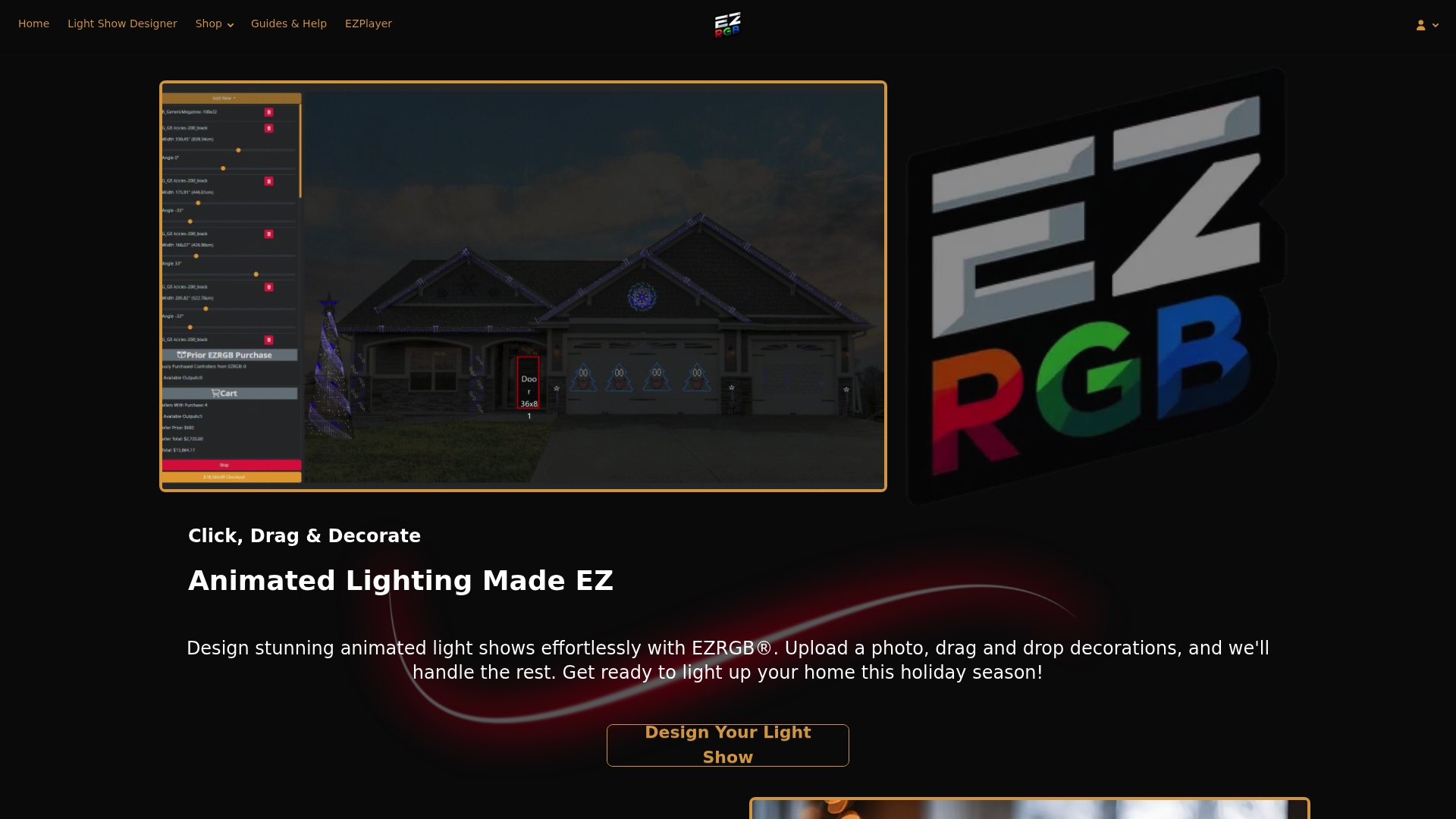
You upload a photo of your home and tell the Designer a real measurement, such as the width of a door or window, by drawing a box around it and entering the dimensions. That scales the photo. Then you:
-
Draw rooflines, curves, doors and windows with the drawing tools.
-
Drag decorations onto the house.
-
Read the estimates for how many lights you need and how big each prop will be.
The Designer also tracks the controller ports still available. If you add something that needs more ports than you have, it flags that you need another controller. Nobody has to count ports on paper.
Sequences: the lighting performance
A sequence contains the instructions that create the lighting effects. Choose an available sequence for the song you want, then obtain the matching music separately. Follow its product information for the correct recording or version; a different recording may not line up with the lighting.
For the EZRGB kit workflow, EZPlayer cloud sync handles the show download and configuration. You do not need to manually transfer a sequence file to another playback program to use your kit. See the official EZPlayer overview for automatic sequence mapping, downloads and layout sync.
EZPlayer: playback and scheduling
EZPlayer is how you run the show. It syncs with the cloud, downloads and configures your show, and reprograms controllers when you add to your display. It also guides you on which prop connects to which controller output. From the website you can schedule songs, sync your purchased EZRGB songs and change which songs play. For a walkthrough, see how to schedule your show in one evening.
You do not need to keep your photo map or a local show folder for next season. Your design lives in your account.
What a controller actually does
Pixel lights cannot plug into a wall outlet or a computer and simply work. They need a controller that converts playback data into a signal pixels understand, and a power arrangement that suits them. In an EZRGB kit the controller arrives pre-programmed for your design, and the Designer keeps track of what each one can handle. If you want the longer explanation, read what a show controller does or what a holiday lighting controller is.
Network and connection requirements
The kit workflow depends on the cloud, so you need an internet connection when you set up and sync.
-
The player syncs over Wi-Fi.
-
Every controller is hardwired by Ethernet.
EZRGB does not use wireless controllers. Follow the supplied connection guidance for the Ethernet connections and prop outputs; Wi-Fi sync and the wired controller network have different jobs. Protect cable routes from vehicle traffic and trip hazards without changing the prescribed connections.
Can you use lights you already own?
Animated shows need pixel-based lights and a controller that understands them. Ordinary incandescent or LED string sets only turn on and off or dim as a group, so they cannot show individual colors and motion. The practical route is to keep your existing strings for static areas such as a tree wrap or hedge, and add animated props where you want movement. Our comparison of RGB pixels and traditional lights covers the differences in detail. Do not assume an existing string or third-party prop can connect to an EZRGB controller just because its connector looks similar. Ask EZRGB about the specific product before including it in the system.

Safety checks before you plug in
Use equipment and mounting suitable for the location, following the supplied instructions. The Electrical Safety Foundation’s outdoor decoration guidance recommends GFCI protection for outdoor electrical decorations, inspecting cords for damage, and keeping electrical connections out of standing water. Do not overload outlets or use damaged cords.
Kit sizing does not replace checking that your home’s electrical supply and the installation location are suitable. If you are unsure about an outdoor outlet or electrical capacity, ask a qualified electrician. Keep access paths clear and support props with mounting appropriate for their weight and the surface.
What to check before installation day
Open the current listing for the kit you are considering and compare its named items with the order details. A roofline-focused bundle and a bundle with wreaths or snowflakes can have different contents. The kit includes its listed extensions; do not add a second set simply because a generic lighting checklist says extension leads are an extra purchase.
Use the Designer to build the display on your scaled house photo. It works out the equipment for that design, including the lights needed for drawn outlines. Confirm the reference measurement you entered, particularly if the photo angle makes an edge hard to identify. You are checking the starting measurement, rather than measuring every roofline and assigning controller ports yourself.
Next, plan the mounting for your particular house and select your sequences and matching music. When installation day arrives, place the decorations, follow the connection guidance, sync the show through the cloud, and test playback and your schedule before inviting viewers.
Start with your own house
If you are ready to move from static strings to animation, browse Plug and Play Kits and open the Designer to see your house with decorations on it. Each kit listing shows its equipment, and you can add plug and play props later as your display grows.
If you want a step-by-step path first, our six-step beginner guide from photo to show covers the whole process.
FAQ
Does an EZRGB kit include sequences and music?
No. Sequences and the matching music are sold separately, and neither comes with the kit or with the other. You choose the songs you want from the sequences shop and add them to your order.
Is mounting hardware included?
Mounting is not included because every house is different. A roofline with shingles, gutters or stucco needs different clips or fasteners. You supply those, and the setup guide in the kit helps you plan where each prop goes.
Do I need to know xLights or other software?
No xLights knowledge is required for the EZRGB kit workflow. Build your layout in the Designer and use EZPlayer with the cloud to download and configure your show. Follow the EZRGB setup guidance rather than instructions for a different playback system.
What internet connection do I need?
The kit workflow uses the cloud. EZPlayer syncs over Wi-Fi, and each controller connects by hardwired Ethernet.
